
- articles
- Shopify Dropshipping
How to Fulfill Orders on Shopify Dropshipping
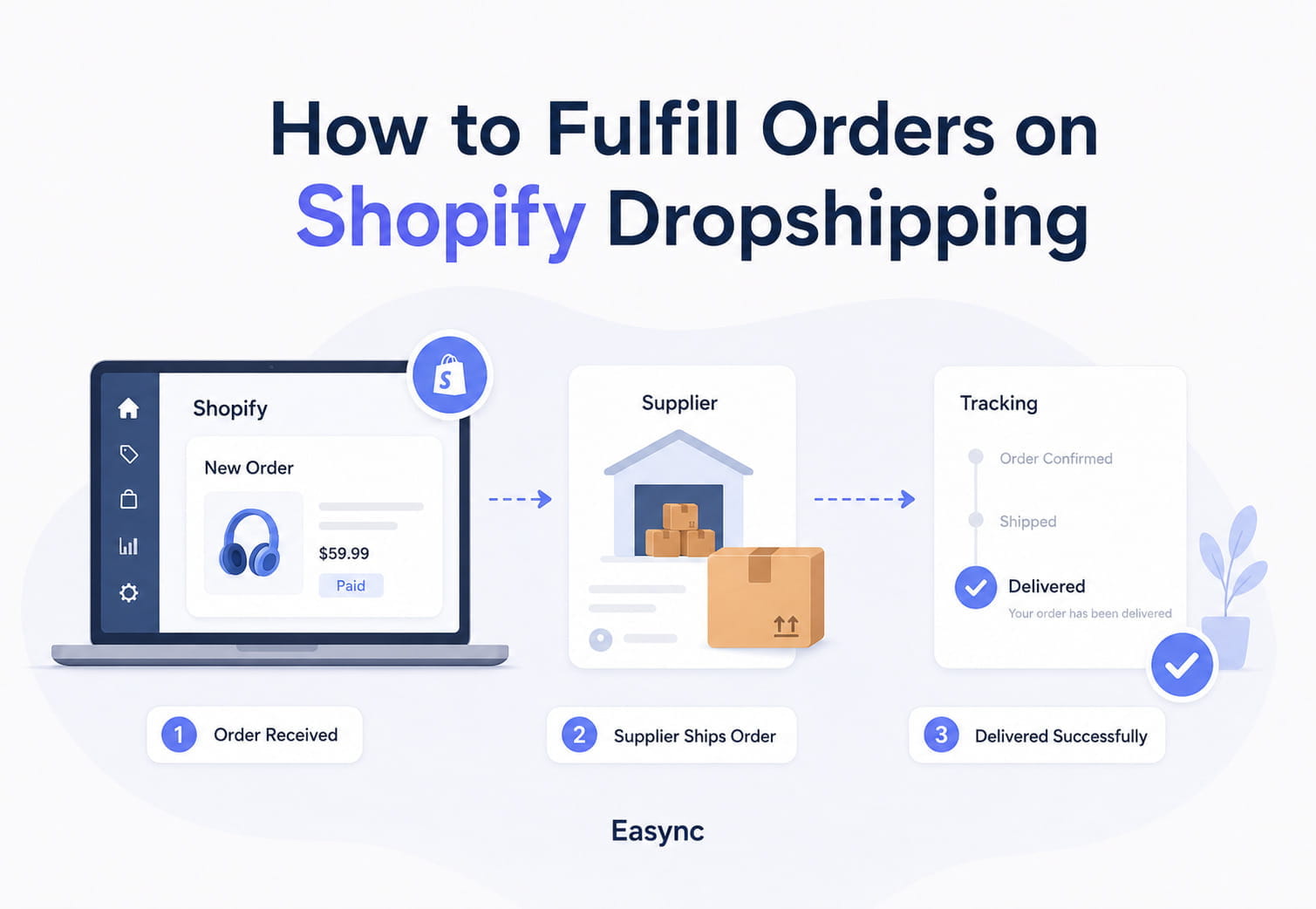
Fulfilling dropshipping orders on Shopify means sending the customer order from your Shopify store to a supplier, making sure the supplier ships the product, and then updating the order with tracking information so the customer can follow the delivery.
If you are trying to understand how to fulfill dropship orders on Shopify, the key is to separate the customer-facing order in Shopify from the supplier-facing order that needs to be processed and shipped.
The exact process depends on your setup. Some sellers fulfill orders manually. Others use supplier apps, fulfillment services, CSV workflows, or automation tools that sync orders, stock, prices, and tracking numbers. The main goal is always the same: process paid orders accurately, avoid stock and price errors, add tracking on time, and keep customers informed.
This guide explains how to fulfill orders on Shopify dropshipping step by step, including manual fulfillment, automated fulfillment, non-integrated supplier workflows, tracking updates, common mistakes, and when to move from manual work to automation.
Key Takeaways
- You can fulfill dropshipping orders on Shopify using manual fulfillment, supplier app workflows, CSV workflows, or dedicated automation tools.
- Manual fulfillment works for beginners and low order volume stores, but it becomes slow and error-prone as orders grow.
- Supplier apps can help sync orders and tracking, but sellers still need to monitor stock, pricing, failed syncs, and supplier delays.
- Non-integrated suppliers require a more structured workflow with order exports, field mapping, supplier order IDs, and tracking updates.
- Automation tools like Easync can help sellers reduce manual work with product importing, stock and price monitoring, auto-ordering, repricing rules, tracking synchronization, and multi-account workflows.
Shopify Dropshipping Fulfillment Methods: Quick Comparison
| Fulfillment Method | How It Works in Shopify Admin | Best for Monthly Volume | Pros | Cons | Typical Tools |
|---|---|---|---|---|---|
| Fully manual | Orders appear in Shopify Admin under Orders. The seller manually places supplier orders, copies tracking, and marks the order as fulfilled | 0 to 50 orders per month | Low cost, full control, easy to start | Time-consuming, high manual error risk, hard to scale | Supplier websites, manual AliExpress orders, spreadsheets |
| CSV workflow | Seller exports unfulfilled orders, maps fields to supplier format, sends the file, receives tracking, and updates Shopify | 20 to 200 orders per month | Faster than order-by-order manual work, useful for non-integrated suppliers | Still partially manual, depends on supplier file accuracy | CSV exports, Google Sheets, import tools, bulk tracking apps |
| Supplier app fulfillment | Orders sync from Shopify to a supplier app, where the seller approves or processes fulfillment | 50 to 500 orders per month | Fewer manual steps, lower address and variant entry risk | App fees, sync errors, some workflows still require approval | DSers, Spocket, Zendrop, CJdropshipping, EPROLO |
| Advanced automation | Software helps import products, monitor stock and prices, place orders, sync tracking, and manage workflows | Growing stores with repeat order volume | Saves time, reduces repetitive tasks, supports scaling | Requires correct setup and ongoing monitoring | Easync, custom integrations, API middleware |
| Fulfillment service or 3PL | A fulfillment partner receives order details, packs, ships, and updates fulfillment | Hybrid stores or stocked inventory | Useful for products stored in a warehouse | Not always ideal for pure dropshipping | 3PLs, fulfillment services, Shopify fulfillment apps |
What Is Shopify Dropshipping Fulfillment?
Shopify dropshipping fulfillment is the process of handling a customer order without storing or shipping the product yourself. The customer buys from your Shopify store, you send the order details to a supplier, and the supplier ships the product directly to the customer.
The seller still controls the digital workflow. Inside Shopify Admin, you manage the Orders page, review payment status, check fulfillment status, add tracking numbers, select the shipping carrier, and send customer notifications.
In other words, dropshipping does not remove fulfillment work. It changes the type of fulfillment work. Instead of packing boxes, you manage supplier accuracy, stock availability, supplier pricing, order routing, tracking updates, and customer communication.
What Happens After a Customer Places a Dropshipping Order on Shopify?
When a customer places an order, Shopify creates an order record in Shopify Admin under Orders. The order can have different statuses, including payment status and fulfillment status. For dropshipping, the order is usually paid by the customer first, but it is not fulfilled until the supplier ships the product.
A simple dropshipping fulfillment flow looks like this:
- Customer places an order in your Shopify store.
- Shopify records the order in Shopify Admin.
- You check payment, fraud risk, product availability, shipping address, and supplier price.
- You send the order to the supplier manually, through a supplier app, through a CSV workflow, or through automation.
- Supplier ships the product to the customer.
- You receive a tracking number and shipping carrier.
- You update the Shopify order with tracking information.
- Shopify can send a customer notification with the tracking details.
- The order status moves toward fulfilled or delivered depending on the workflow.
This sounds simple, but fulfillment errors are common. The supplier can run out of stock, the price can change, the customer address can be incomplete, or the tracking number can arrive late. That is why sellers need a clear fulfillment workflow.

Shopify Fulfillment vs Dropshipping Fulfillment
In a regular Shopify fulfillment workflow, the seller may store inventory, pack the order, buy a shipping label, and ship the product directly to the customer. In a dropshipping fulfillment workflow, the seller does not usually handle the product physically. Instead, the Shopify order must be sent to a supplier, and the supplier ships the product to the customer.
This difference matters because dropshipping sellers need to manage supplier stock, supplier prices, processing times, tracking numbers, and customer notifications more carefully. The order may appear inside Shopify, but the actual fulfillment depends on how quickly and accurately the supplier processes it.
Pre-Fulfillment Checklist Before You Start Taking Orders
Before fulfilling dropshipping orders, make sure the store is ready to process them correctly. This checklist should be completed before running paid traffic or scaling a product.
Check these items first:
- Shipping zones are configured correctly
- Shipping rates are realistic for your target markets
- Delivery expectations are clear on product pages and checkout
- Payment gateways are working
- Tax settings are reviewed for your target markets
- Product fulfillment service is assigned correctly in Shopify
- Supplier stock is stable enough for testing
- Supplier processing times are known
- Supplier shipping methods are available for your target countries
- Order confirmation and shipping confirmation emails are enabled
- Tracking notifications are branded and clear
- Return and refund policy is visible
- At least one test order has been placed
- Supplier order flow has been tested from checkout to tracking
- Backup supplier options are identified for best-selling products
This step prevents fulfillment chaos later. Many dropshipping problems come from launching products before shipping, payment, supplier, and notification settings are properly tested.
Manual Fulfillment: How to Fulfill Dropshipping Orders on Shopify Step by Step
Manual fulfillment is the simplest way to start. It works best when you have a low number of daily orders and want to check every detail yourself.
Step 1. Open the Order in Shopify Admin
Go to Shopify Admin and open Orders. Click the order you want to fulfill.
Before doing anything, check:
- Payment status
- Fraud analysis or risk indicators
- Customer name and shipping address
- Products and variants ordered
- Shipping method selected by the customer
- Customer notes or special instructions
If the order is unpaid, high risk, or has an incomplete address, do not rush fulfillment. Fix the issue first.
Step 2. Check Supplier Stock and Price
Before placing the supplier order, confirm that the product is still available and that the supplier price has not changed.
This is one of the biggest dropshipping risks. A product can look profitable when you list it, but the supplier price can change before the order comes in. If you fulfill without checking, you can lose margin or be forced to cancel.
Check:
- Product availability
- Variant availability
- Supplier price
- Shipping cost
- Estimated delivery time
- Supplier processing time
If the item is out of stock, contact the customer quickly or offer a suitable alternative.
Step 3. Place the Supplier Order
Open your supplier platform and place the order using the customer shipping details from Shopify.
Be careful with:
- Name spelling
- Street address
- Apartment or unit number
- City, state, ZIP code, and country
- Phone number if required
- Correct product variant
- Quantity
- Shipping method
Do not enter your own address unless you are shipping to yourself first. In most dropshipping workflows, the supplier ships directly to the customer.
Step 4. Pay the Supplier
After checking the order details, pay the supplier. Save the order number or supplier reference ID. This makes it easier to resolve issues later.
For manual fulfillment, it is useful to keep a simple record with:
- Shopify order number
- Supplier order number
- Supplier name
- Product
- Order date
- Supplier status
- Tracking number
- Customer issue notes
This can be done in a spreadsheet when you are starting, but it becomes hard to manage as order volume grows.
Step 5. Add Tracking in Shopify
When the supplier provides tracking, return to the Shopify order.
In Shopify Admin, you can mark the order as fulfilled and add the tracking number. If Shopify recognizes the tracking number format, it may select the shipping carrier automatically. If not, choose the correct shipping carrier manually.
Make sure the tracking number and carrier match. A wrong carrier can confuse customers and make tracking links fail.
Step 6. Send Customer Notification
When you fulfill the order, Shopify can send a shipping confirmation notification to the customer if the customer email is available.
This is important because customers expect tracking updates. If they do not receive tracking, they are more likely to contact support, ask for refunds, or open disputes.
Before sending the notification, check:
- Tracking number is correct
- Shipping carrier is correct
- Customer email is available
- Order is actually shipped or accepted by the supplier
Do not mark an order fulfilled too early if you do not have reliable tracking yet.
Manual Fulfillment with Non-Integrated Suppliers
Not every supplier has a Shopify app. Some suppliers require manual ordering, CSV uploads, email orders, or a separate portal.
This is common when sellers work with niche suppliers, local vendors, private suppliers, or marketplaces that do not integrate directly with Shopify.
A non-integrated supplier workflow usually looks like this:
- Export or copy order details from Shopify.
- Place the order in the supplier system.
- Confirm product variant, customer address, and shipping method.
- Wait for supplier confirmation.
- Receive tracking from supplier.
- Add tracking to the Shopify order manually.
- Send customer notification.
For non-integrated suppliers, pay special attention to field mapping. Supplier files and portals may use different names or formats for order ID, SKU, product variant, customer name, address, shipping method, tracking number, and carrier. If these fields are copied or imported incorrectly, the order can be shipped to the wrong address, fulfilled with the wrong variant, or updated with tracking that does not work in Shopify.
A simple field-mapping checklist should include:
- Shopify order number
- Supplier order ID
- SKU
- Product variant
- Quantity
- Customer name
- Customer address
- Shipping method
- Tracking number
- Shipping carrier
- Fulfillment status
This workflow can work, but you need strong process control. The biggest risk is forgetting to update Shopify after the supplier ships. If the customer does not receive tracking, the order may look unfulfilled even if the supplier already shipped it.
For non-integrated suppliers, use a daily checklist and keep supplier order IDs connected to Shopify order numbers.
Automated Fulfillment Through Supplier Apps
Many Shopify dropshipping sellers use supplier apps to speed up fulfillment. A supplier app can connect products, orders, inventory, and tracking between Shopify and the supplier platform.
The basic flow is usually:
- Customer places an order in Shopify.
- Order appears in the supplier app.
- Seller reviews or confirms the order.
- Supplier processes and ships the product.
- Tracking syncs back to Shopify.
- Customer receives tracking notification.
This is faster than copying details manually. It also reduces the chance of typing the wrong address or product variant.
However, supplier apps are not fully hands-off. Sellers still need to monitor:
- Failed order syncs
- Out-of-stock products
- Supplier price changes
- Wrong product mappings
- Tracking delays
- Canceled supplier orders
- Shipping method changes
Automated app fulfillment is useful, but it still needs daily review.
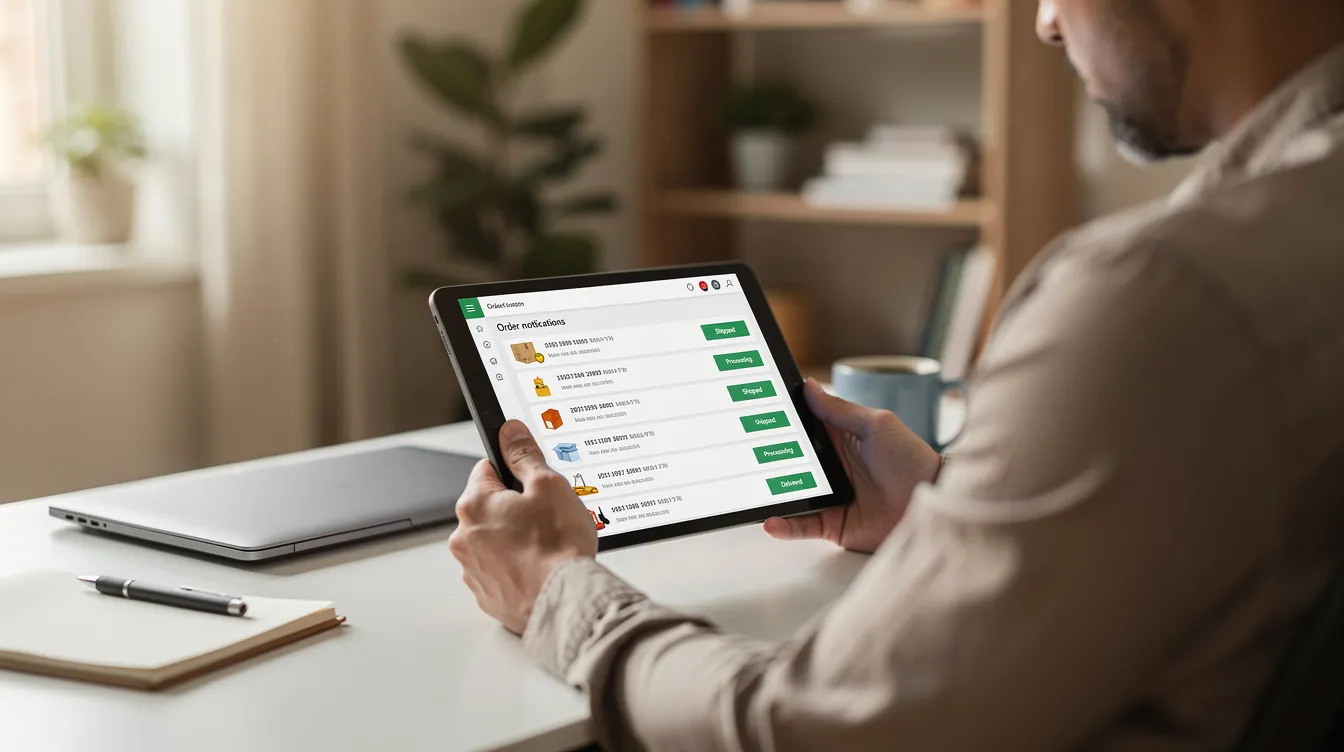
Configuring Shopify Settings for Automatic Fulfillment
Shopify can support automatic fulfillment workflows, but sellers should be careful before turning them on. Automatic fulfillment works best when products are standardized, supplier workflows are reliable, and every product is connected to the correct fulfillment service.
Before enabling automatic fulfillment, check:
- Each product has the correct fulfillment service assigned
- Product variants are mapped correctly
- Supplier stock is reliable
- Shipping methods are clear
- Customer notification settings are correct
- You are not selling pre-orders or custom products that need review
- High-risk orders still get manual review
- You understand what happens when tracking is synced
Do not enable automatic fulfillment blindly. If products frequently go out of stock, require customization, or need manual approval, automatic fulfillment can create wrong fulfillment statuses, confused customers, or duplicate supplier orders.
For many stores, a hybrid workflow is safer. Automate repeatable low-risk orders, but manually review risky, high-ticket, custom, or unusual orders.
Pre-Fulfillment Checklist for Each Shopify Dropshipping Order
Before fulfilling any dropshipping order, check these items:
- Payment is captured or confirmed
- Order is not high risk or suspicious
- Customer shipping address is complete
- Product and variant are correct
- Supplier still has stock
- Supplier price has not changed too much
- Shipping method is available
- Estimated delivery time is acceptable
- Supplier can ship to the customer country
- Customer has not requested cancellation
- No duplicate order was created
- Tracking workflow is clear
This checklist is simple, but it prevents many beginner mistakes. Most fulfillment problems happen because sellers process orders too quickly without checking stock, price, address, or payment status.
Daily Order Fulfillment SOP for Shopify Dropshippers
A daily SOP helps you avoid missed orders and fulfillment delays.
Use this workflow once or twice per day depending on order volume:
- Open Shopify Admin and review new orders.
- Filter by payment status and fulfillment status.
- Check high-risk orders before sending them to suppliers.
- Group orders by supplier if you use multiple suppliers.
- Confirm stock and supplier price for each item.
- Place manual supplier orders, upload supplier files, or approve app orders.
- Record supplier order IDs if needed.
- Check orders from previous days for tracking updates.
- Add tracking numbers and shipping carriers to Shopify.
- Send customer notifications when tracking is ready.
- Review exceptions such as failed orders, out-of-stock items, wrong addresses, and delayed tracking.
- Contact customers early if there is a delay or issue.
- Archive, tag, or note completed orders according to your store process.
For small stores, this can take a few minutes per day. For growing stores, manual work becomes harder because every order needs the same checks. That is when automation starts to matter.
Common Shopify Dropshipping Fulfillment Mistakes
Marking Orders as Fulfilled Too Early
Some sellers mark orders as fulfilled before the supplier ships. This can confuse customers and make support harder.
Only mark an order as fulfilled when you have a clear shipping status or tracking workflow.
Using the Wrong Shipping Carrier
If the wrong carrier is selected, the tracking link may not work. Always check that the tracking number and carrier match.
Forgetting Customer Notifications
Customers expect shipping updates. If you add tracking but do not notify the customer, support requests can increase.
Fulfilling High-Risk Orders Too Quickly
If Shopify flags an order as risky, review it before sending it to the supplier. Fulfilling suspicious orders too quickly can create chargeback problems.
Ignoring Supplier Price Changes
Supplier prices can change after you import a product. If you do not monitor prices, you may sell at a loss.
Selling Out-of-Stock Products
Overselling is one of the most common dropshipping problems. If the supplier runs out of stock after your customer pays, you may need to cancel, refund, or find another supplier.
Mixing Up Product Variants
Size, color, plug type, material, and model variations matter. Always check the exact variant before sending the order.
Delaying Tracking Updates
Late tracking updates make customers nervous. Even if the supplier ships the product, customers may contact support if Shopify does not show tracking.
Assigning the Wrong Fulfillment Service
If a product is connected to the wrong fulfillment service, the order may route incorrectly or fail to sync. Review product settings before scaling a product.
Mixing Manual and App Fulfillment Without Checks
Duplicate fulfillment can happen when the same order is processed manually and through an app. Always review fulfillment status before placing supplier orders.
Manual vs Automated Dropshipping Fulfillment
Manual fulfillment gives you control, but it does not scale well. Automated fulfillment saves time, but it needs correct setup.
| Factor | Manual Fulfillment | Automated Fulfillment |
|---|---|---|
| Best for | Beginners and low order volume | Growing stores and repeatable workflows |
| Setup difficulty | Low | Medium |
| Daily workload | High as orders grow | Lower after setup |
| Error risk | Higher manual entry risk | Lower if product mapping is correct |
| Stock monitoring | Manual checks | Can be automated |
| Price monitoring | Manual checks | Can be automated |
| Tracking updates | Manual entry | Can sync automatically |
| Flexibility | High | Depends on tool and supplier |
| Scaling potential | Limited | Better for higher order volume |
A good approach is to start manual if you are testing products. Once you have consistent sales, stable suppliers, and repeatable order patterns, move more of the workflow into automation.
When Should You Move from Manual Fulfillment to Automation?
Manual fulfillment is fine when you receive a few orders per week. But it becomes risky when orders increase and every order needs stock checks, price checks, supplier ordering, tracking updates, and customer notifications.
Consider moving to automation when:
- You process orders every day
- You sell products from multiple suppliers
- Supplier stock changes often
- Supplier prices change often
- You spend too much time placing orders
- You miss tracking updates
- You manage more than one Shopify store
- You need repricing rules
- You are testing many products at once
- You want fewer manual mistakes
Automation is not just about saving time. It also helps reduce operational errors that affect customer experience.
How Easync Helps with Shopify Dropshipping Order Fulfillment
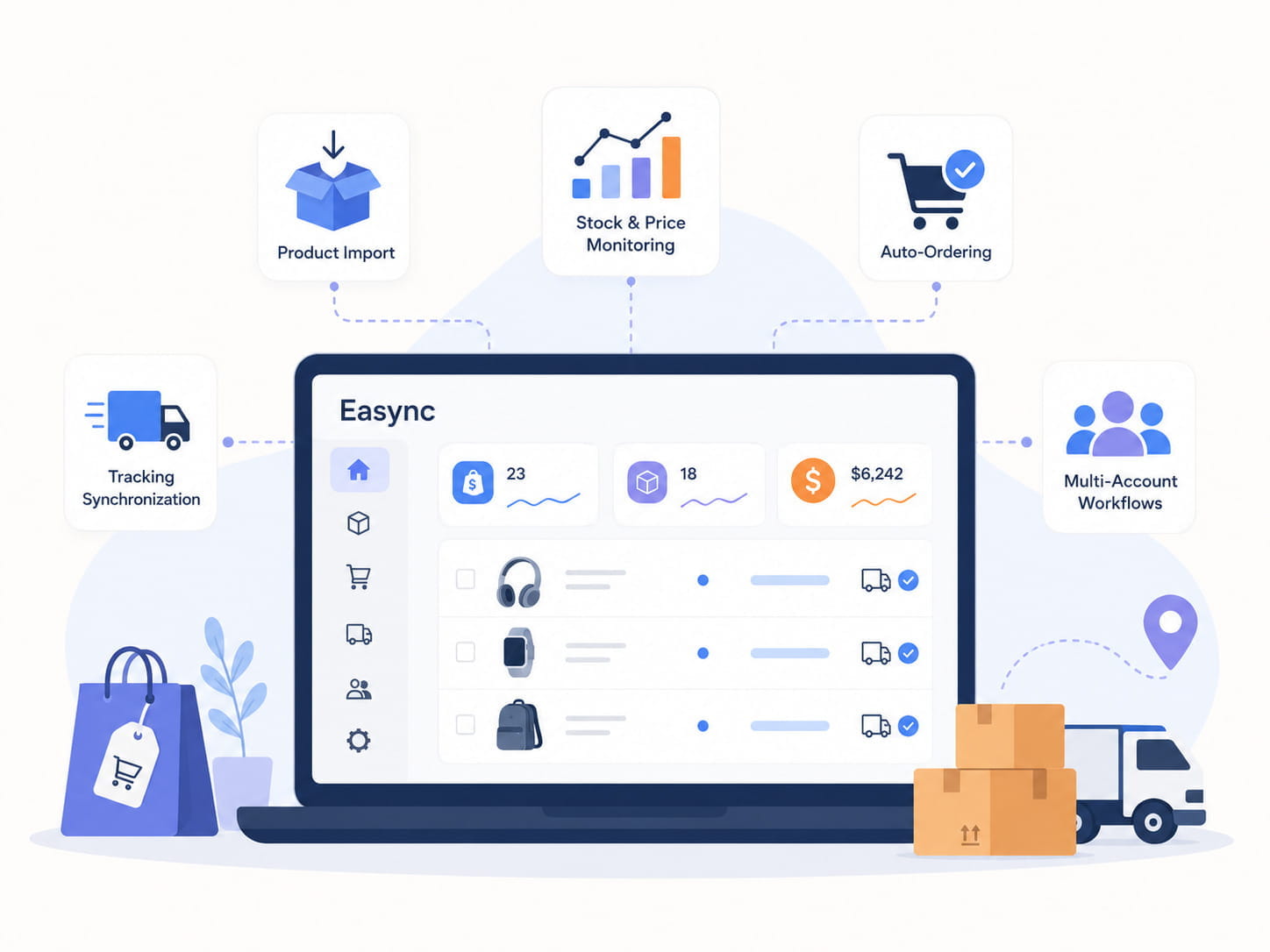
For the topic of how to fulfill orders on Shopify dropshipping, it can be useful to use Easync automation because order fulfillment depends on accurate product data, supplier availability, pricing, ordering, and tracking. Dropshipping software Easync supports automated product importing, real-time stock and price monitoring, auto-ordering, repricing rules, tracking synchronization, and multi-account workflows. These features can help Shopify dropshippers reduce manual work, avoid overselling, react to supplier price changes, place orders faster, keep tracking updates organized, and manage multiple store or supplier workflows more consistently.
This does not remove the need for product research or supplier checks. Sellers still need to choose reliable suppliers, review delivery times, and monitor customer issues. But automation can make the fulfillment process more stable once order volume grows.
How to Handle Tracking Updates in Shopify
Tracking is one of the most important parts of fulfillment. Customers want to know where their order is and when it will arrive.
When you receive tracking from the supplier, add it to the order in Shopify. Include:
- Tracking number
- Shipping carrier
- Tracking URL if needed
- Customer notification preference
If Shopify recognizes the tracking number, it may select the carrier automatically. Still, check it before saving.
Good tracking practices:
- Do not send fake or placeholder tracking
- Do not delay tracking updates after the supplier ships
- Do not use the wrong carrier
- Do not mark orders fulfilled without a clear fulfillment reason
- Send updates when tracking changes if needed
If tracking is delayed, send a short customer message explaining that the order is being processed and tracking will be updated when available.
How to Fulfill Part of an Order
Sometimes a customer orders multiple products, but only one item is ready to ship. In Shopify, sellers can fulfill part of an order by entering the quantities they want to fulfill.
Partial fulfillment can be useful when:
- One item is out of stock
- Items come from different suppliers
- Products ship from different locations
- One item is delayed
- A preorder item is included
If you partially fulfill an order, communicate clearly with the customer. Let them know that items may arrive separately.
Handling Returns and Refunds in a Dropshipping Model
Returns are more complicated in dropshipping because the seller does not control the warehouse. The supplier may have a different return address, different refund rules, or no return option for certain low-cost items.
A practical return workflow looks like this:
- Customer requests a return or refund.
- Seller checks the store return policy.
- Seller checks the supplier return policy.
- Seller decides whether to offer a replacement, partial refund, full refund, or supplier return.
- Seller processes the refund or return inside Shopify.
- Seller records the reason for the return to evaluate product and supplier quality.
For low-cost products, some sellers may refund without requiring the customer to return the item if return shipping is too expensive. For higher-value products, the supplier return policy matters more.
The key is to keep customer-facing policies clear. Do not promise easy returns if the supplier cannot support them.
Custom Packaging and Branding with Dropshipping Suppliers
Some dropshipping suppliers offer custom packaging, branded inserts, thank-you cards, stickers, or logo-printed invoices. This can make the customer experience feel more like a real brand instead of a generic supplier shipment.
Custom packaging can help with branding, but it also adds operational complexity. It may require setup time, higher minimum order quantities, longer processing times, or test orders before launch.
If you use custom packaging, make sure your Shopify shipping and handling expectations match the supplier’s real timeline. A branded package is not useful if it creates delays you did not communicate to customers.
Beginner Workflow: First 10 Dropshipping Orders
For your first orders, do not automate everything immediately. Use the first 10 orders to understand the process.
Suggested beginner workflow:
- Review each order manually in Shopify Admin.
- Check payment and customer address.
- Check supplier stock and price.
- Place supplier order manually or through the supplier app.
- Save supplier order ID.
- Wait for tracking.
- Add tracking to Shopify.
- Send customer notification.
- Monitor delivery.
- Record problems and supplier performance.
After 10 to 20 orders, review what slowed you down. If the same tasks repeat every day, those are good candidates for automation.
Common Errors and Fixes
| Problem | Likely Cause | Best Fix |
|---|---|---|
| Order is paid but unfulfilled | Supplier order was not placed yet | Place the supplier order or approve fulfillment |
| Tracking is missing | Supplier has not shipped or tracking was not synced | Check supplier status and update Shopify when available |
| Wrong carrier selected | Shopify did not recognize tracking correctly | Edit tracking and choose the correct shipping carrier |
| Customer asks where the order is | Tracking notification was not sent or tracking is delayed | Send tracking link or explain current order status |
| Product is out of stock | Supplier inventory changed after listing | Offer replacement, refund, or source from another supplier |
| Price increased after sale | Supplier price changed | Use price monitoring or repricing rules going forward |
| Duplicate fulfillment | Order was processed manually and through an app | Review fulfillment status before placing supplier orders |
| Wrong product variant ordered | Product mapping or manual selection error | Check variants before supplier checkout |
| Delivery is delayed | Supplier or carrier delay | Contact supplier and update customer proactively |
| Customer address is incomplete | Missing apartment, ZIP code, phone, or region | Contact customer before placing supplier order |
| Supplier file does not match Shopify fields | CSV columns or supplier format are different | Map fields before sending or importing order data |
| Wrong fulfillment service is assigned | Product settings route the order incorrectly | Review product inventory and fulfillment service settings |
Best Practices for Shopify Dropshipping Fulfillment
Keep your fulfillment process simple at first. Use clear rules, repeatable checks, and reliable suppliers before scaling.
Best practices:
- Check payment before fulfillment
- Review risky orders manually
- Keep supplier order IDs connected to Shopify orders
- Monitor stock and price changes
- Add tracking as soon as it is available
- Use customer notifications wisely
- Avoid unrealistic shipping promises
- Create saved replies for common delivery questions
- Use tags or notes for fulfillment exceptions
- Review supplier performance regularly
- Keep backup suppliers for important products
- Move repetitive tasks into automation once volume grows
The best fulfillment workflow is not the most complicated one. It is the one your store can follow consistently without missing orders, tracking updates, or customer issues.
FAQ: How to Fulfill Dropshipping Orders on Shopify
How do I fulfill dropshipping orders on Shopify?
To fulfill dropshipping orders on Shopify, open the order in Shopify Admin, check payment and customer details, place the order with your supplier, wait for the supplier to ship, add the tracking number and shipping carrier to Shopify, and send the customer notification.
Can Shopify automatically fulfill dropshipping orders?
Yes, Shopify can support automated fulfillment workflows through apps, fulfillment services, and supplier integrations. However, the exact automation depends on your supplier, app setup, and fulfillment process.
Should beginners fulfill Shopify dropshipping orders manually?
Beginners can start with manual fulfillment to understand how orders, suppliers, tracking, and customer notifications work. Once orders become consistent, automation can reduce repetitive work and manual errors.
What does Mark as fulfilled mean in Shopify?
Mark as fulfilled means that the order or selected items are marked as shipped or completed in Shopify. When fulfilling an order, sellers can add tracking details, select the shipping carrier, and send a customer notification.
What if my supplier does not integrate with Shopify?
If your supplier does not integrate with Shopify, you can fulfill orders manually, use a CSV workflow, or use middleware or automation tools. Copy or export the order details from Shopify, place the order with the supplier, then update Shopify with the correct tracking number and shipping carrier when the supplier ships.
When should I add tracking to a Shopify dropshipping order?
Add tracking when the supplier provides a real tracking number and shipping carrier. Correct tracking helps customers follow delivery through Shopify notifications, shipping emails, and the order status page.
How do I update tracking numbers in bulk on Shopify?
Bulk tracking updates depend on your fulfillment setup. Some supplier apps and automation tools can sync tracking numbers back to Shopify automatically. If your supplier does not integrate with Shopify, you may need to use an import workflow or update tracking manually, making sure each tracking number matches the correct Shopify order, carrier, and customer.
Can I use multiple dropshipping suppliers for the same Shopify store?
Yes. Many Shopify stores use multiple dropshipping suppliers for different product categories, regions, or shipping speeds. The important part is to document which products belong to which supplier and make sure each order is routed to the correct supplier or fulfillment app.
How should I price products to cover variable dropshipping shipping costs?
Build a margin buffer into your product prices and review supplier prices, shipping costs, and marketplace competition regularly. Repricing rules and price monitoring tools can help adjust prices when supplier costs change, but sellers should still review margins on top-selling products.
What happens in Shopify if a single order is shipped in multiple packages?
Shopify supports partial fulfillment. If one item ships first, you can fulfill that item with its own tracking number and leave the remaining items unfulfilled until they ship. When the rest of the order ships, you can add a second tracking number and notify the customer again.
What are the biggest Shopify dropshipping fulfillment mistakes?
Common mistakes include fulfilling orders before checking payment, ordering the wrong variant, ignoring supplier stock changes, missing tracking updates, choosing the wrong shipping carrier, assigning the wrong fulfillment service, and forgetting to notify the customer.
When should I automate Shopify dropshipping fulfillment?
You should consider automation when you process orders regularly, manage multiple products or suppliers, need stock and price monitoring, spend too much time placing orders manually, or often deal with tracking update delays.