
- Express guides
- Stores & Listings
How to Set Up Your eBay Store in Easync: Business Policies, Settings and First Listings
Short answer: To dropship on eBay with Easync, connect your store from Add store → eBay and pick your eBay site, then create three eBay business policies: shipping, payment (with “Require immediate payment” on) and returns. Add a payment method for eBay seller fees. In Easync, select those policies and your item location under Advanced settings every time you add products, then publish right away or review the batch in Drafts and approve it.
What you need before you start
- An eBay seller account on one of the supported eBay sites: US, UK, Germany, France, Canada, Australia, Netherlands, Belgium (French or Dutch), Italy, Spain or India.
- An Easync account. The eBay free trial gives you 7 days and up to 200 listings, which is enough to go through this whole guide.
- A payment method for eBay seller fees on your eBay account. Without one, eBay rejects new listings with a message that additional information is needed for your seller account.
- A fulfillment account (for example, an Amazon buyer account) if you want Easync to place supplier orders automatically. That’s a separate step, covered in How to connect a fulfillment account. You can list products before you add it.
Plan for some waiting on eBay’s side: new business policies and the first listing sync each take a few hours.
Step 1. Connect your eBay store to Easync
- Log in to the Easync dashboard at my.easync.io and click Add store under Stores Management on the home page.
- In Select your Selling Channel, choose Ebay.
- In Select your Selling Region, choose the eBay site you sell on, such as United States or United Kingdom.
- Easync sends you to eBay’s authorization page. Click Agree to give Easync access to your store.
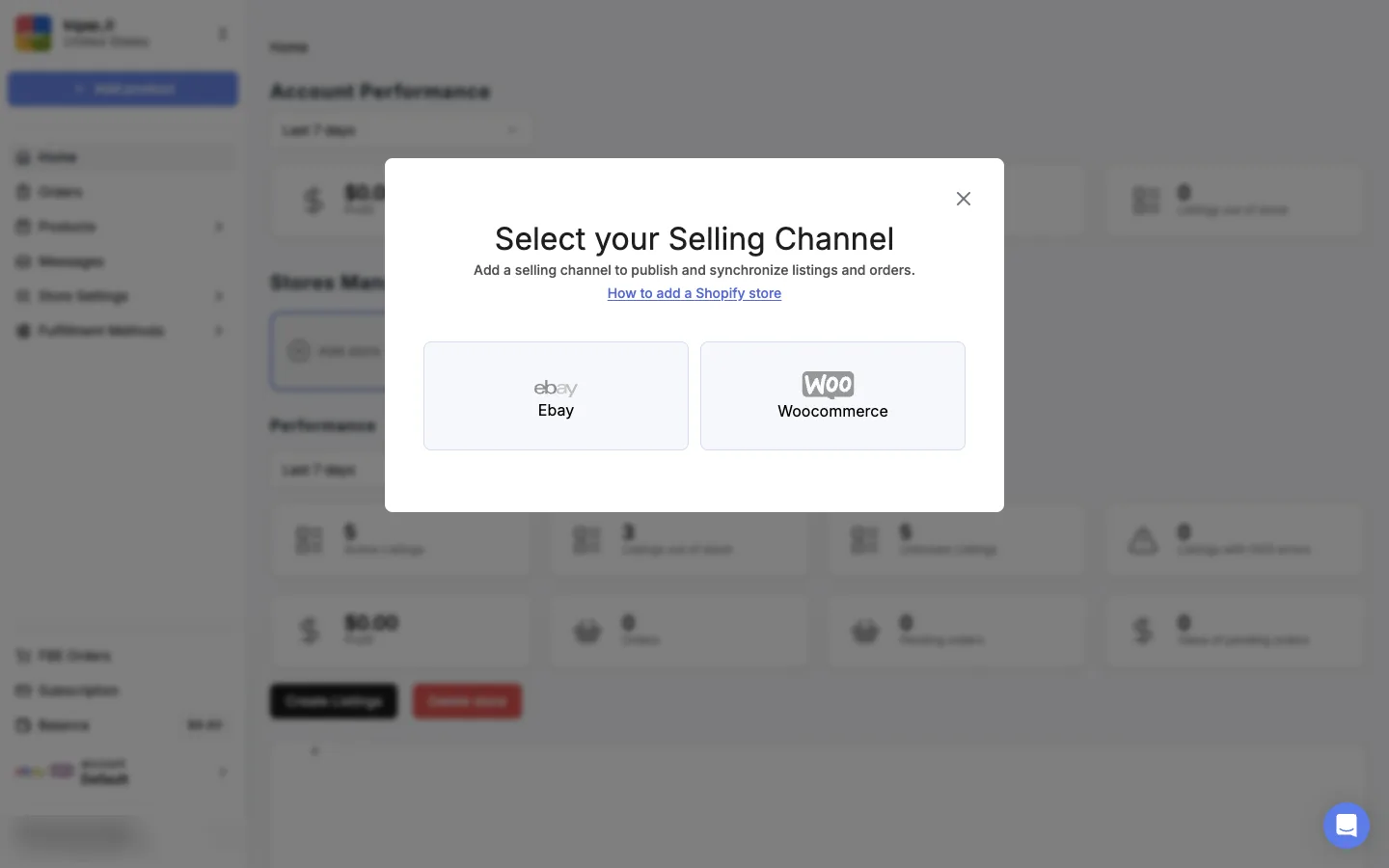
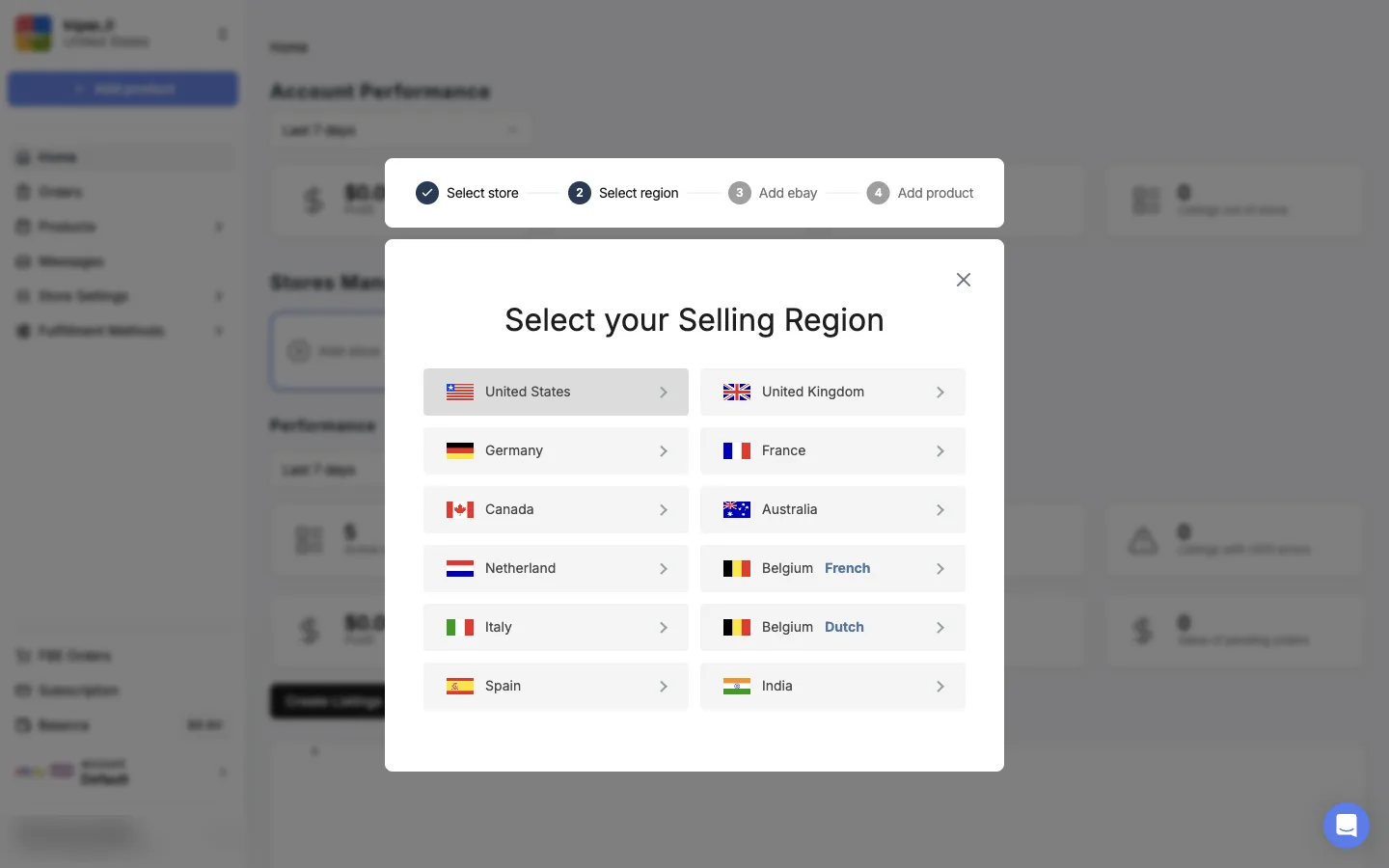
Log in to the eBay account you want to connect in the same browser before you click Add store. eBay asks you to authorize the account that is signed in.
Once the store is connected, Easync starts syncing the listings you already have on eBay. This usually takes a few hours. Synced listings count toward your plan’s listing limit, so the number in Easync can be higher than the number of products you’ve added yourself.
Step 2. Set up eBay business policies
eBay business policies are saved templates for shipping, payment and returns. You create each one once and attach it to as many listings as you want. Easync attaches a policy of each type to every listing it creates, so you need all three before you can publish.
Opt in to business policies
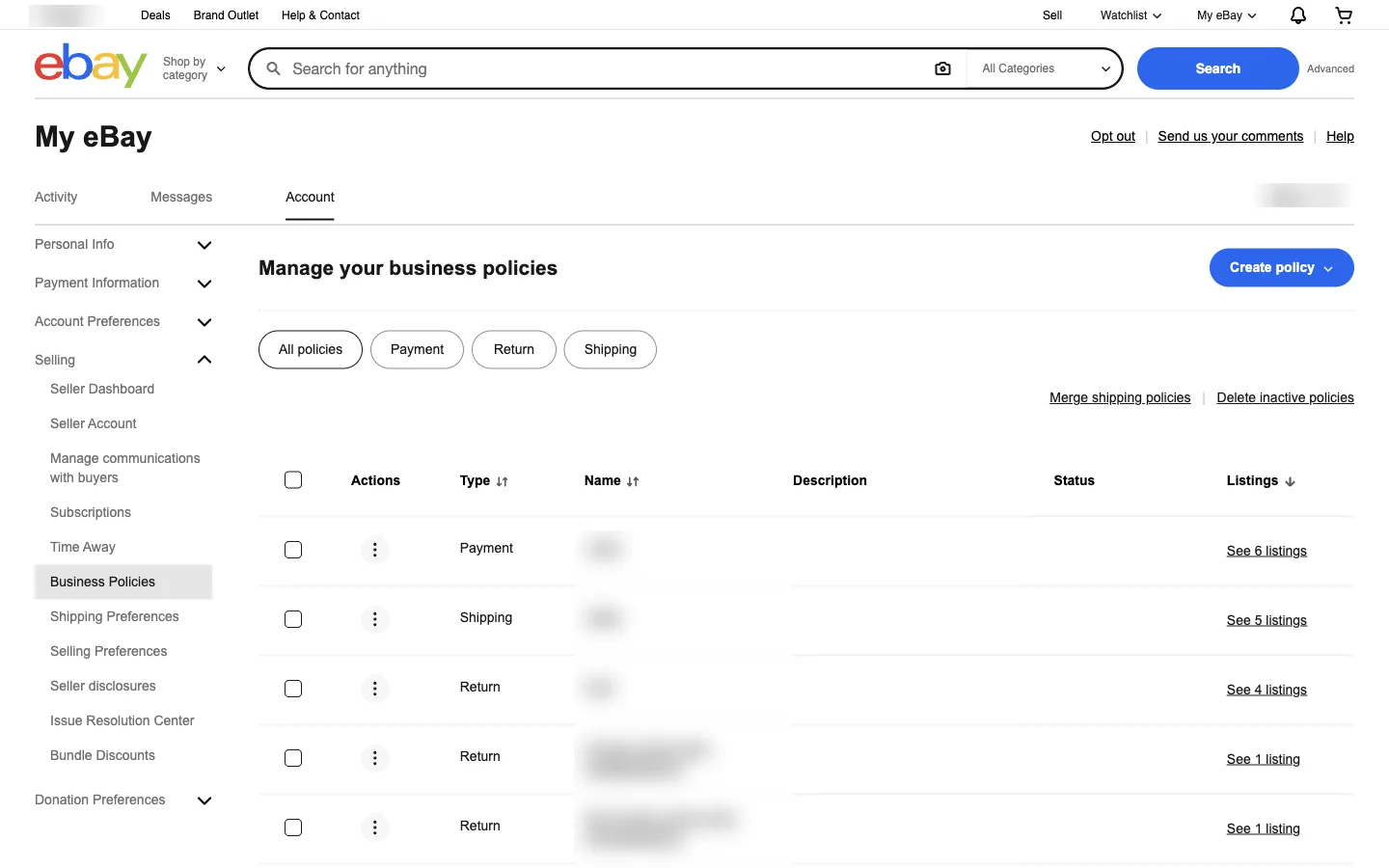
Business policies live in My eBay → Account → Business Policies (under Selling). Click Create policy and choose Payment, Return or Shipping. If eBay asks you to opt in to business policies first, confirm it. Opting in applies to your whole eBay account, but each eBay site keeps its own policies. If you sell on eBay US and eBay UK, create a set of policies on each one.
Shipping policy
Your shipping policy tells buyers where you ship, how fast and at what cost. For dropshipping, set it up around what your supplier can deliver:
- Handling time. Match the time your supplier needs to dispatch an order. Easync’s starter settings below assume up to 5 days.
- Excluded locations. Exclude Alaska and Hawaii, US protectorates, APO/FPO addresses and PO boxes. Amazon doesn’t deliver to these addresses, so an order from there can’t be auto-ordered. Easync usually sets these exclusions for you, but check that they are in the policy.
- International buyers. To sell abroad from eBay US, turn on eBay International Shipping in the policy. The order is shipped to eBay’s US hub, and eBay handles the international leg. Easync auto orders these sales like any other order: the supplier ships to eBay’s hub, with the buyer’s name shown as, for example, “eIS C/O James Simmons”. Tracking updates work as usual.
Payment policy
Turn on Require immediate payment. With this setting, a Buy It Now buyer has to pay at checkout before the order exists. Easync places the supplier order once the order is paid, so without immediate payment, unpaid orders stall and auto-ordering can’t complete.
Return policy
Set how many days buyers have to return an item and who pays for return shipping. Keep your return window no longer than your supplier’s. Otherwise a buyer can return an item after you can no longer return it to the supplier.
New or edited business policies take a few hours to show up in Easync. If you just created them and they aren’t in the list in Step 4, wait and reload the page.
Step 3. Choose starter store settings in Easync
Open Store Settings → Repricing for your eBay store. Make sure Enable Repricing is checked. If you’re new to Easync, start with these values:
| Setting | Starter value | What it does |
|---|---|---|
| Quantity in stock | 1 | Quantity shown on each eBay listing |
| Shipping Time | 5 | Handling time, in days, sent to eBay |
| Enable Check Duplicates Across All Stores | On | Stops you from listing the same product twice |
| Prevent Out-Of-Stock Orders | On | Sets the eBay quantity to 0 when the supplier has no offer, so buyers can’t order an item you can’t fulfill |
Click Save, or Save for all stores if you run more than one store.
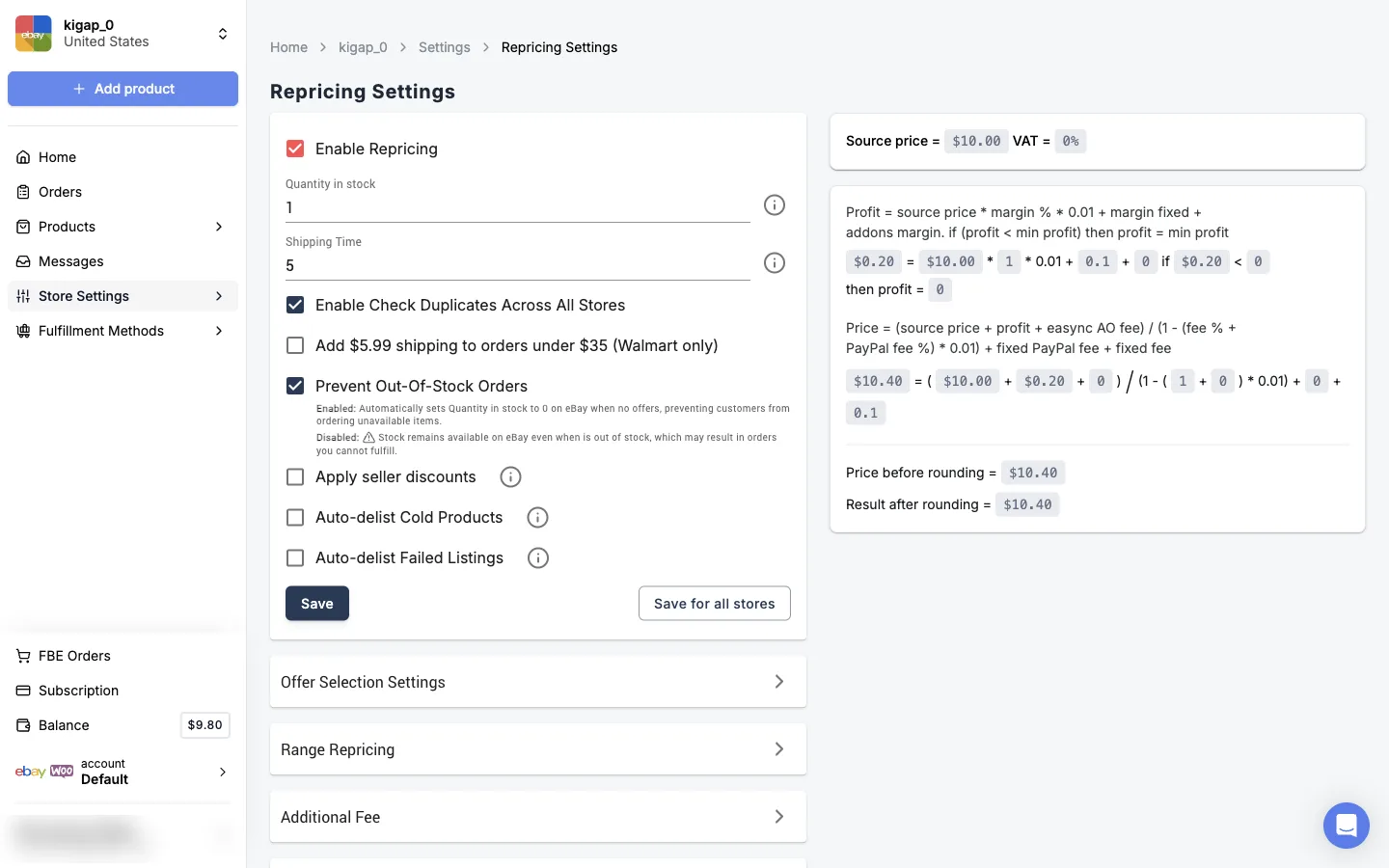
Then open Offer Selection Settings on the same page. On the Amazon tab, set which supplier offers Easync is allowed to buy from:
| Setting | Starter value |
|---|---|
| Shipping method | Free |
| Maximum handling days | 7 |
| Allow third-party FBA offers | On |
| Allow “Prime Only” offers | On |
| Allow third party merchant-fulfilled offers | Off (Easync marks it “not recommended”) |
| Condition Settings | New |
Walmart and AliExpress have their own tabs with the same idea. You can leave Range Repricing, Additional Fee, Round Prices, Sales Count, Location Settings and VAT Details at their defaults for now. To set your profit margin or fix the price of individual listings, see Pricing and repricing in Easync.
Step 4. Add products and select your business policies
Click Add product at the top of the left menu. In the Add Products window, check that Publish to shows the right store, and at the bottom pick the Supplier source (Amazon, Walmart or AliExpress) and its Region. Then add products in one of two ways:
| Tab | Best for |
|---|---|
| URL’s or ID’s. Paste supplier product links or IDs, such as Amazon ASINs, one per line. | Starting from scratch |
| Upload CSV. Upload a CSV of your existing listings. | Stores that already have listings: the CSV matches each eBay listing to its supplier product, for example an Amazon ASIN |
Before you publish, open Advanced settings and fill in this batch:
- Single listings or With variants (automatic detection). Choose variants for products that come in sizes or colors.
- Payment policy, Return policy and Shipping policy: pick the policies you created in Step 2.
- Country, Location and Postal code: where the item ships from. eBay rejects listings without a valid postal code.
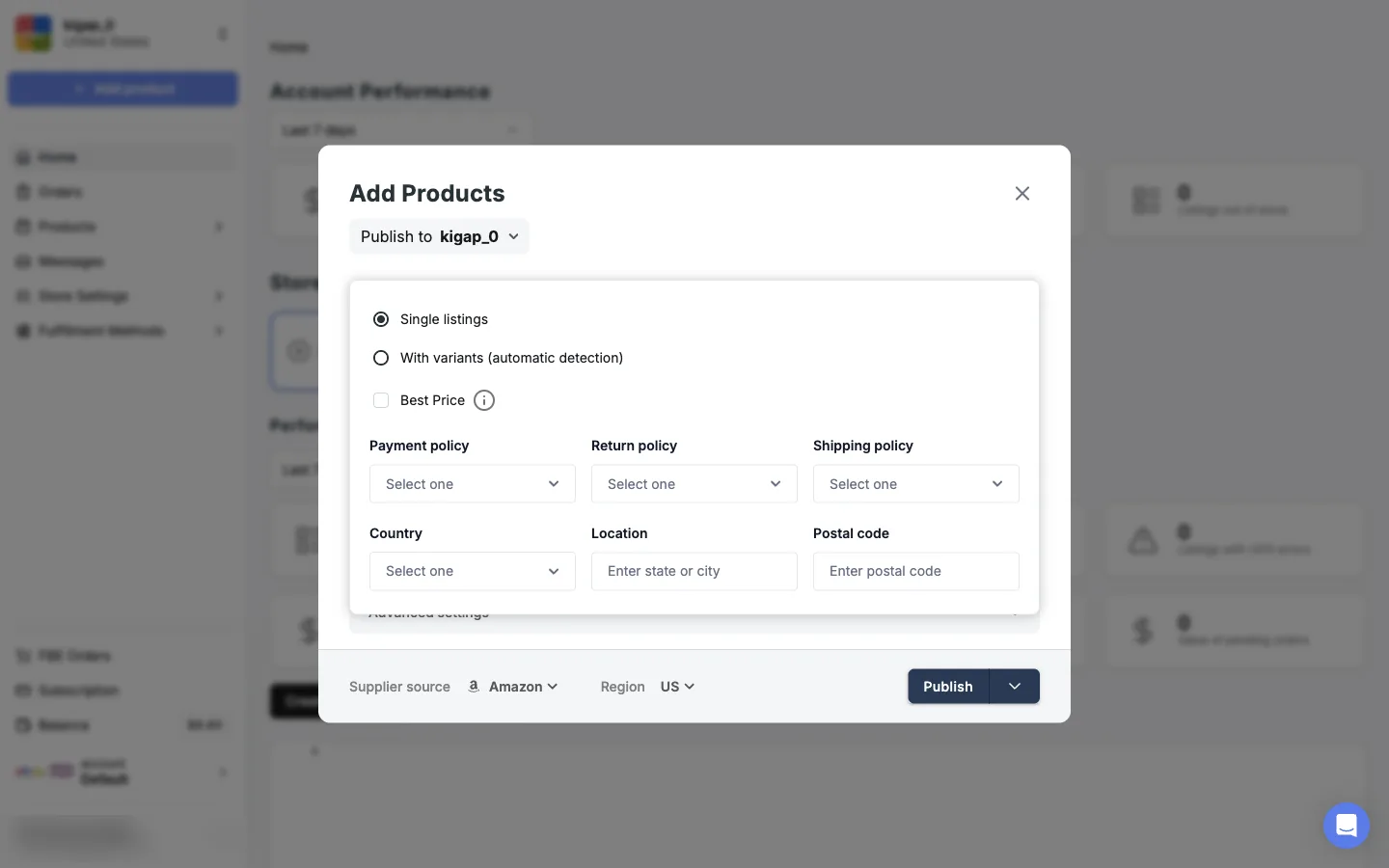
Policies that exist on eBay aren’t attached to listings automatically: you select them in Advanced settings for each upload. On some stores the selection resets, so check it every time you add products.
Step 5. Publish to eBay and review the batch
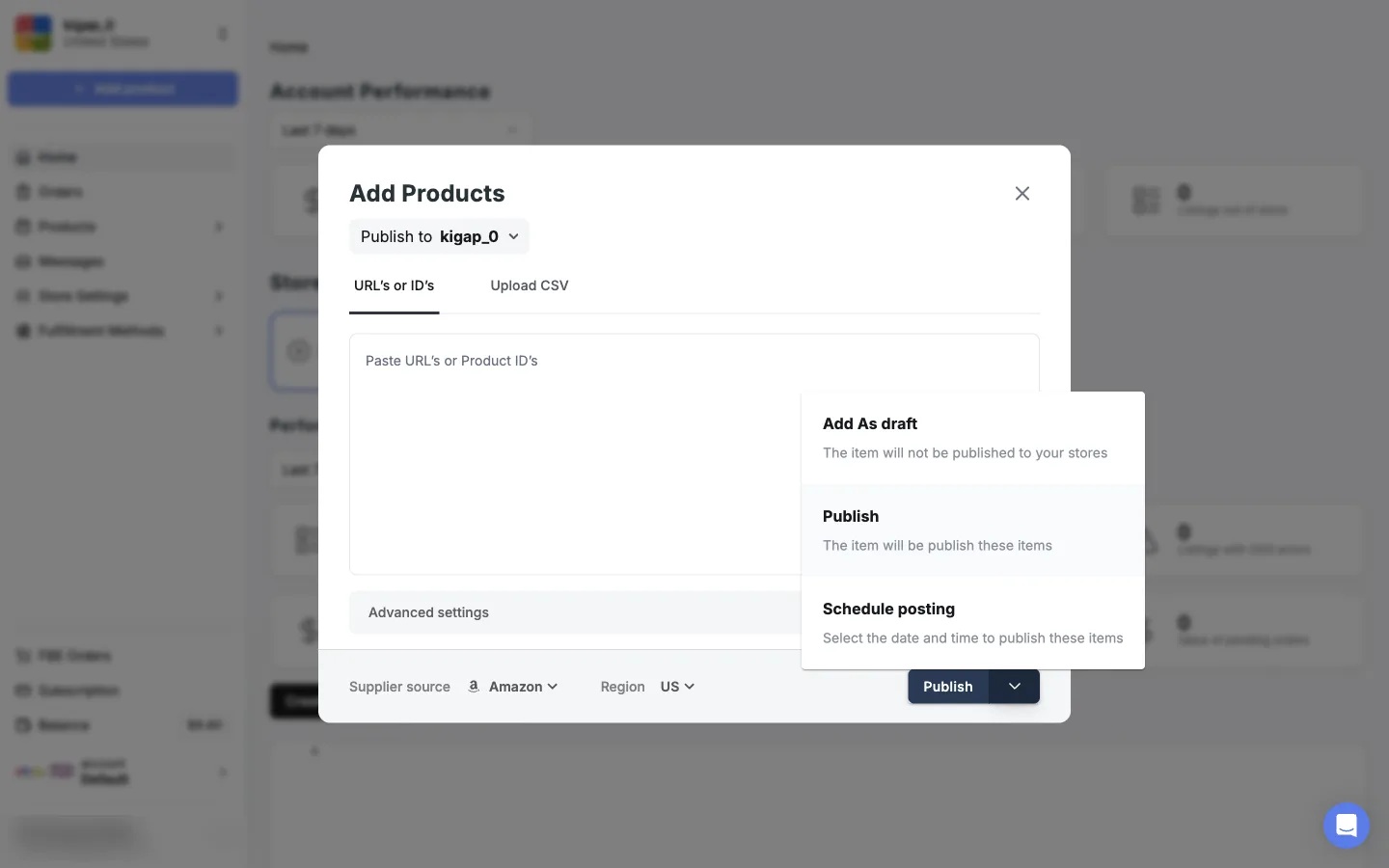
The Publish button has three options in its drop-down menu:
| Option | What happens |
|---|---|
| Publish | Easync creates the listings and sends them to eBay right away |
| Add As draft | The listings are saved in Easync but not published to your store |
| Schedule posting | You pick the date and time Easync publishes them |
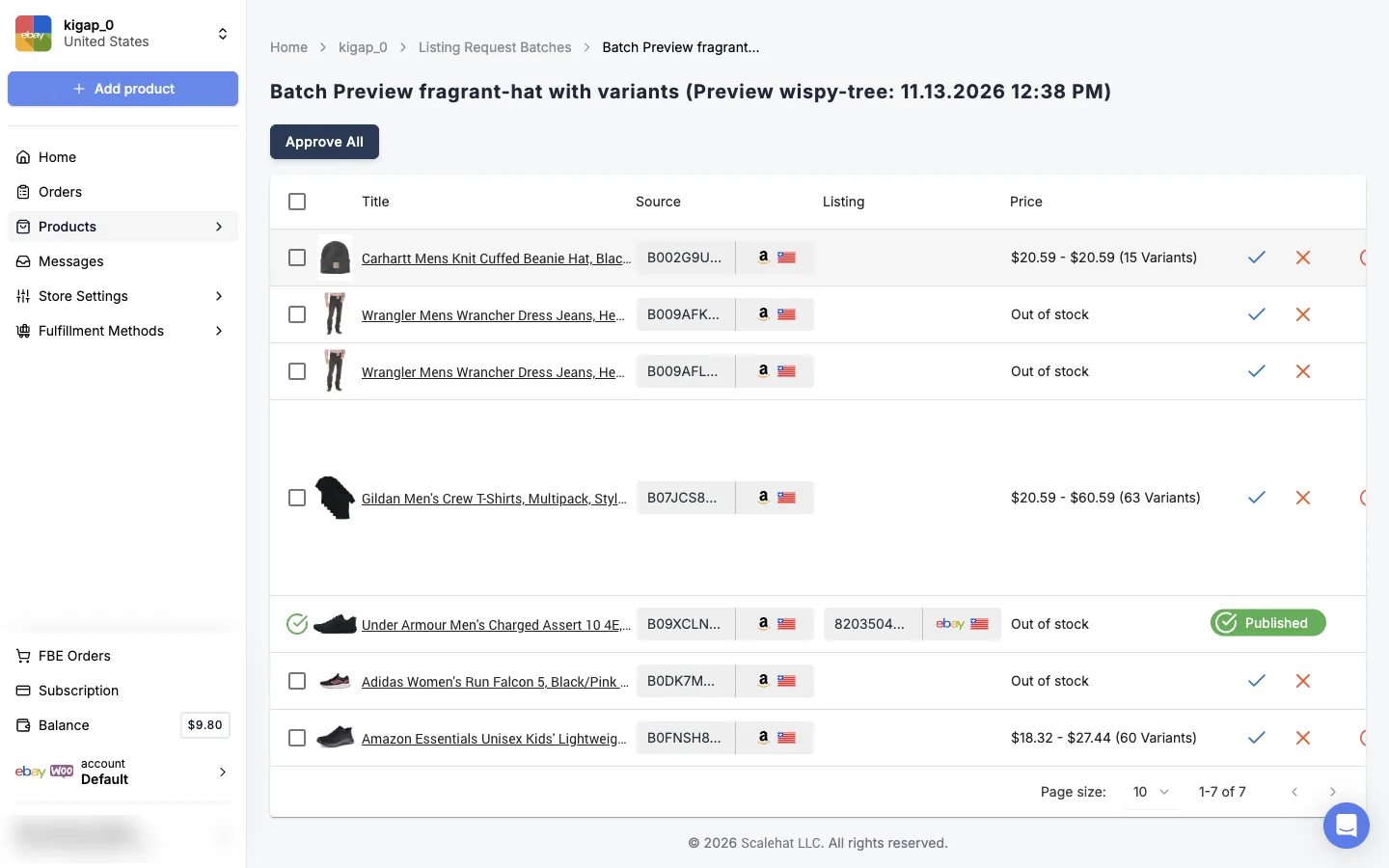
Every upload becomes a batch in Products → Drafts (the Listing Request Batches page). Open a batch to see each product with its supplier ID, price and status. Listings that went live are marked Published. To publish drafts, approve them one by one with the check mark, or all at once with Approve All. Approved listings go live on eBay right away, unless they have an error that blocks publishing. If eBay rejected a listing, the error is shown under the product, so you can fix the cause and publish it again.
When the first sale comes in, Easync can order the item from your supplier automatically. To set that up, see How to fulfill orders with Easync.
Troubleshooting: listings that don’t publish
“A return option is missing or not valid” or another policy error. This is the most common reason a listing isn’t published. Reopen Advanced settings and make sure a Shipping, Payment and Return policy is selected, then publish again. The policy existing on eBay isn’t enough.
“Please enter a valid postal code.” The item location is missing. Fill in Country, Location and Postal code in Advanced settings, then publish again.
“… is not a valid value for Size.” The supplier’s variant names don’t match eBay’s allowed values for that category. Publish the product as single listings, or fix the values in the listing before you approve it.
“Additional information is needed for your seller account.” eBay has no payment method for seller fees. Add one in your eBay account, then publish again.
Your new policies don’t appear in Advanced settings. eBay hasn’t made them available yet. Wait a few hours after creating or editing a policy.
Add Products fails or the listing limit is reached. Check your plan’s listing limit and unpaid invoices. Both can block uploads. More fixes in How to add products and fix listing errors.
If listings still won’t publish, open the support chat in your Easync dashboard and send the link to the listing request. Support will check what’s blocking it.
FAQ
Do I need eBay business policies to list with Easync?
Yes. Easync attaches a shipping, payment and return policy to every listing it creates. If the policies don’t exist on eBay, or aren’t selected in Easync’s Advanced settings, the listing isn’t published and shows an error such as “A return option is missing or not valid.”
I created new business policies. Why can’t I see them in Easync?
eBay takes a few hours to make new or edited policies available to connected tools. Wait, then reopen Advanced settings in Add Products.
Can I use the same business policies on eBay US and eBay UK?
No. Opting in to business policies applies to your whole eBay account, but each eBay site needs its own set of policies. Create policies on every site where you connect a store in Easync.
Why does eBay say additional information is needed for my seller account?
eBay has no payment method on file for seller fees. Add one in your eBay account’s payment settings, then publish again.
How long does Easync take to sync my existing eBay listings?
Usually a few hours after you connect the store. Your plan is based on the synced listing count, so existing listings count toward it even if you didn’t create them in Easync.
Which eBay sites does Easync support?
eBay United States, United Kingdom, Germany, France, Canada, Australia, Netherlands, Belgium (French and Dutch), Italy, Spain and India.
Next steps
- Connect a fulfillment account so Easync can order from Amazon or AliExpress automatically.
- Set your prices and profit margin.
- See every supplier and eBay site Easync supports.
- New to eBay dropshipping? Start with Amazon to eBay dropshipping: the full guide and eBay selling limits: new eBay accounts can only list a limited number of items at first.