
- Express guides
- Stores & Listings
Pricing and Repricing in Easync: Store Margins, Fixed Prices and Listing Overrides
Short answer: Easync reprices your eBay listings automatically from the supplier price plus your profit. Set the store-wide profit in Store Settings → Repricing → Range Repricing (a percentage, a fixed amount, or both, per price range). To keep one listing’s price fixed, open it from Listings and use Listing Settings: tick “Do not modify price” and enter a Price Override, Margin Percent or Margin fix. Locking the price doesn’t stop stock tracking; tick “Do not modify quantity” or “Disable Repricing” for that.
Two levels of pricing
Easync is an eBay repricer: it watches the supplier price for every listing and updates your eBay price so you keep your margin. You control price on two levels:
| Level | Where | Applies to | When it takes effect |
|---|---|---|---|
| Store-wide | Store Settings → Repricing | All active listings in the store | On the next repricing cycle |
| Single listing | Listings → open a listing → Listing Settings | That one listing | After you click Save |
A listing override always wins over the store-wide settings for that listing.
How Easync calculates the price
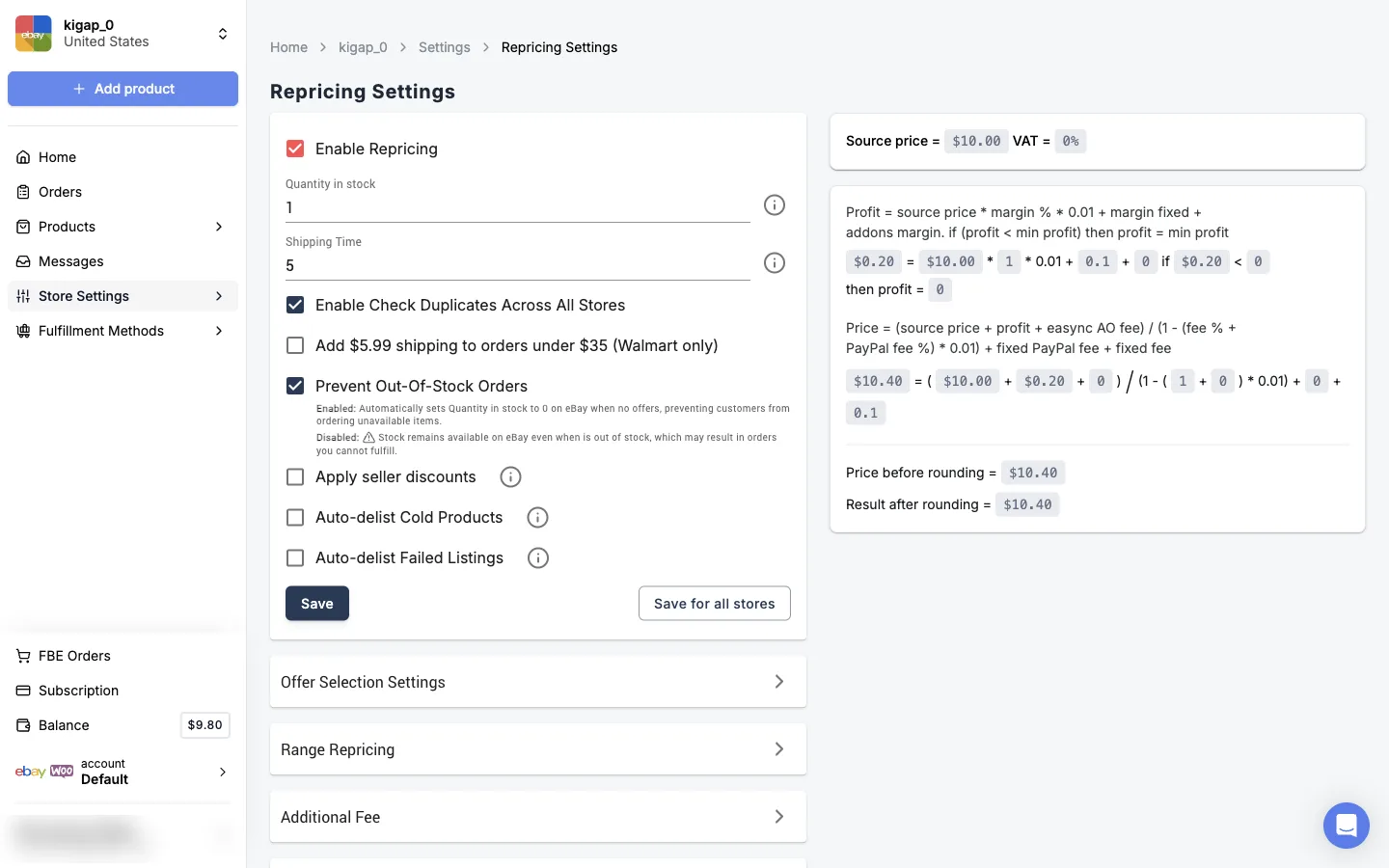
The Repricing Settings page shows the formula with a live example on the right:
- Profit = source price × margin % + fixed margin + add-ons. If that’s below your minimum profit, the minimum is used.
- Price = (source price + profit + Easync auto ordering fee) ÷ (1 − fee % − PayPal fee %) + fixed PayPal fee + fixed fee.
Then Round Prices, if enabled, rounds the result, and VAT is added where it applies. The example box updates as you change settings, so you can check the final price before you save.
Set your store-wide margin
- Open Store Settings → Repricing for your store and make sure Enable Repricing is checked.
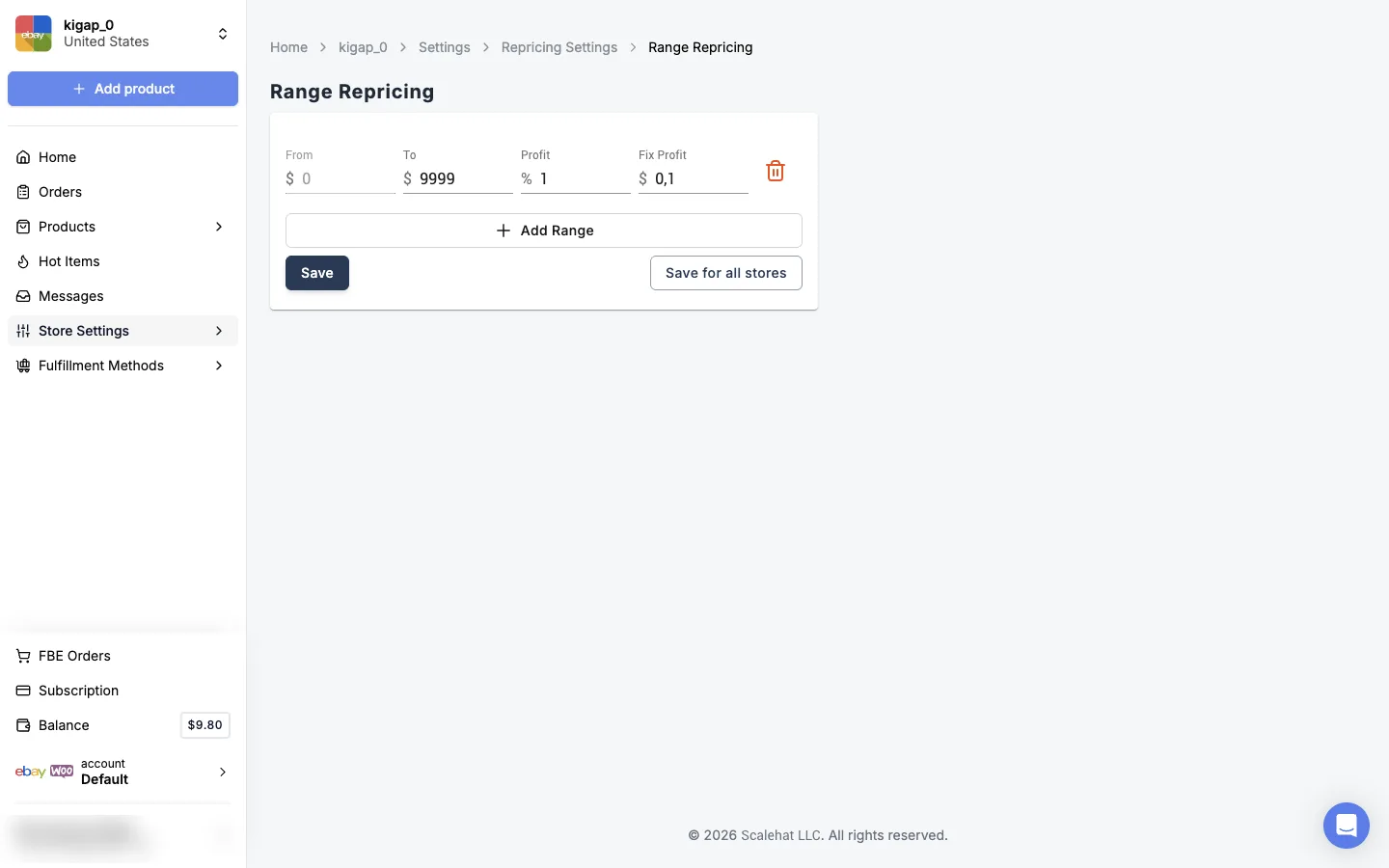
- Open Range Repricing.
- Each row is a price range of the source price, From and To, with its own profit:
– Profit: a percentage of the source price;
– Fix Profit: a fixed amount added on top. - Click Add Range to set a different margin for another price band. For example, a higher percentage on cheap items and a lower one on expensive items.
- Click Save, or Save for all stores to copy the ranges to your other stores.
The other sections on the same page fine-tune the price:
| Section | What it does |
|---|---|
| Additional Fee | A fixed fee and a percentage fee added to every price, for example to cover eBay final value fees |
| Round Prices | Rounds prices after the formula |
| Sales Count | Adjusts price based on how many units a listing has sold |
| VAT Details | VAT for stores that charge it |
New values apply to the store’s active listings on the next repricing cycle, not instantly.
Fix or lock the price of one listing
- Open Products → Listings and click the listing.
- Scroll to Listing Settings.
- Tick the option you need and fill in the field, then click Save.
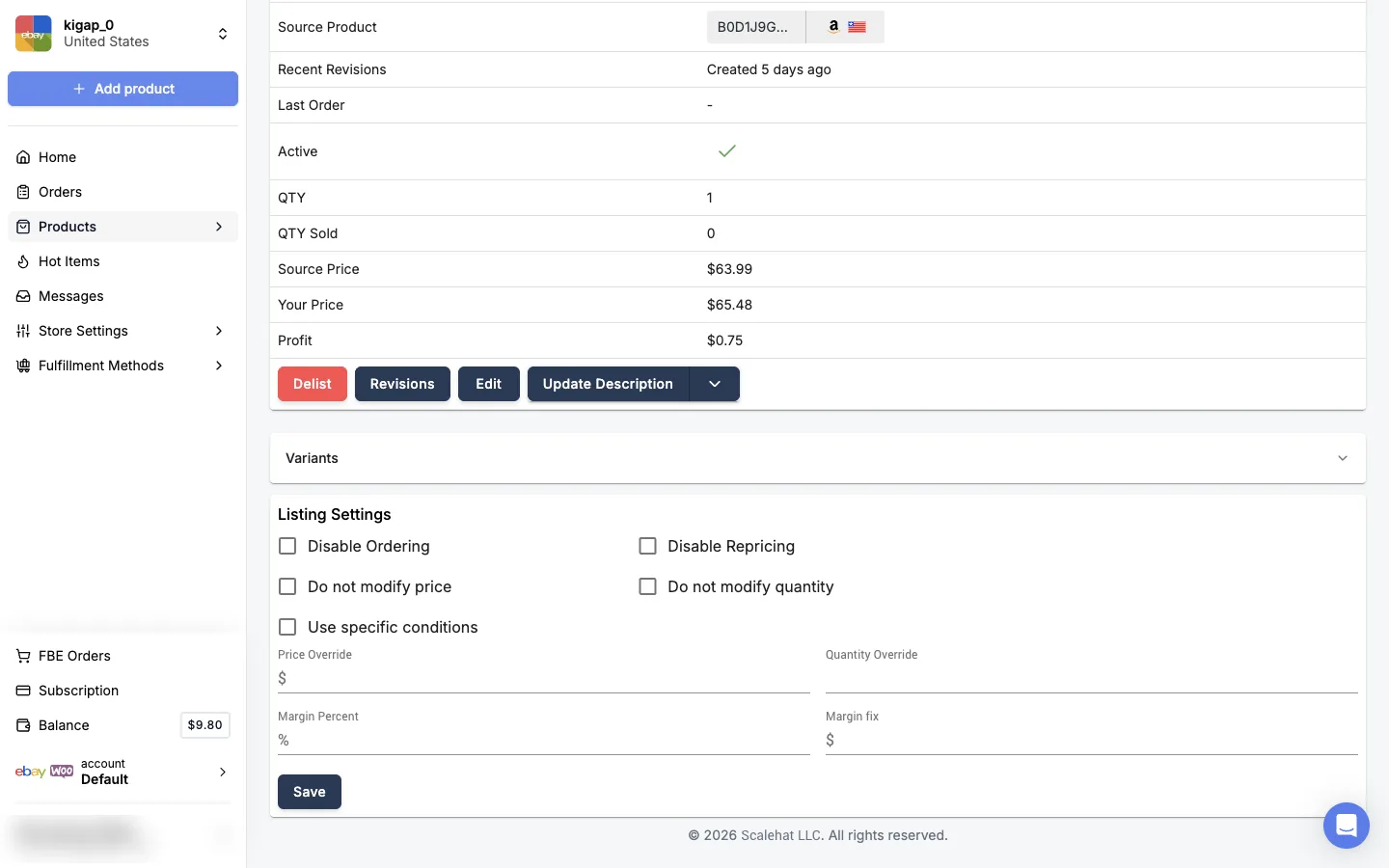
The checkboxes are independent and can be combined:
| Setting | What stays fixed | What keeps updating |
|---|---|---|
| Do not modify price (“lock price”) | Price | Quantity: Easync keeps checking stock |
| Do not modify quantity | Quantity | Price: repricing keeps running |
| Disable Repricing | Price and quantity | Nothing. The repricer skips the listing |
| Disable Ordering | Auto ordering is off for this listing | Price and quantity, unless other boxes are ticked |
Then choose how the price is set for that listing:
- Price Override: a fixed price. It doesn’t follow the supplier price at all.
- Margin Percent: the price is still recalculated, but with your percentage for this listing instead of the store margin.
- Margin fix: the same, with a fixed amount instead of a percentage.
Fill in only one of Margin Percent or Margin fix for a listing.
Quantity Override sets the quantity the listing always shows. Enter 0 to mark a listing out of stock.
Locking the price doesn’t stop stock tracking. If the supplier runs out, Easync still sets the listing to zero. To freeze both price and quantity, tick “Do not modify quantity” as well, or use “Disable Repricing”.
FAQ
How does Easync calculate my eBay price?
It takes the supplier price, adds your profit from Range Repricing (percentage plus fixed amount, with a minimum profit), adds the auto ordering fee and your additional fees, and grosses the total up for marketplace fees. The Repricing page shows the full formula with a live example.
How do I stop Easync from changing the price of one listing?
Open the listing from Listings, tick “Do not modify price” in Listing Settings, enter the price in Price Override and click Save. The price then stays the same even if the supplier price changes.
If I lock the price, does Easync still update stock?
Yes. “Do not modify price” only stops price changes. Easync keeps checking the supplier and updating quantity. Tick “Do not modify quantity” too, or use “Disable Repricing”, to freeze both.
How fast do new margin settings apply?
Store-wide changes in Range Repricing apply to all active listings on the next repricing cycle, not instantly.
Can I set Margin Percent and Margin fix on the same listing?
Set only one of them. Easync support recommends against filling in both for one listing.
How do I mark one listing out of stock?
Enter 0 in Quantity Override in the listing’s settings and click Save.
Next steps
- Set up your eBay store, starter repricing values and first listings.
- Fix listing errors when adding products.